
 Cart is empty
You are at a coffee shop, a job interview is in two hours, and the document you need is saved on your phone. Or you are a student in St. Catharines and your laptop just died with your assignment still on it. Or you are a Niagara business owner who needs 50 flyers printed today and the file is sitting in your Google Drive.
Printing from your phone is not complicated — but it is surprisingly easy to waste time driving to the wrong place, standing at a kiosk that does not support your file type, or ending up with a print that looks nothing like what was on your screen.
This guide covers everything you need to know about mobile printing in the Niagara region — what options exist, how they actually work, what each one is best for, and where to go when you need it done fast and done right. Niagara Print Express in Pelham offers same-day printing from your phone, email or cloud — serving St. Catharines, Welland, Niagara Falls and the entire Niagara Region.
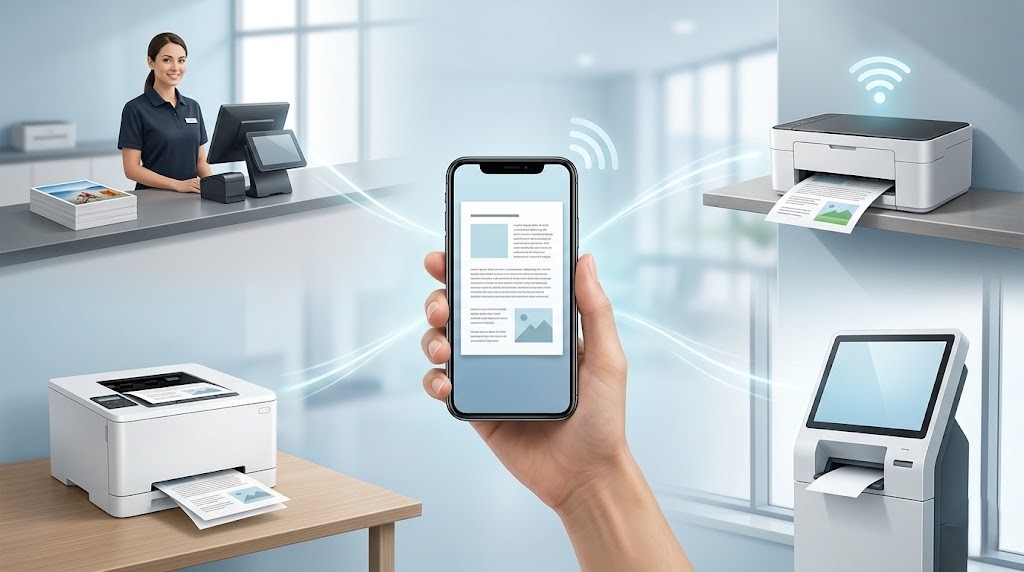
Can You Really Print Directly From a Phone?
Yes — and it is easier in 2026 than most people realise. Both iPhones and Android phones have built-in printing capabilities that have matured significantly over the past few years. The challenge is less about the technology and more about finding the right location and setup.
There are four main ways to print from your phone:
- Email or send the file to a print shop — the simplest and most reliable method for professional quality output
- AirPrint (iPhone/iPad) — wirelessly print to a compatible printer on the same WiFi network
- Google Cloud Print / Mopria Print (Android) — print wirelessly to compatible printers
- Self-serve kiosks — at locations like Staples, with app-based or USB upload options
For anything beyond a basic document — photos, presentations, marketing materials, forms with specific margins — emailing or uploading to a professional print shop is the fastest and most reliable option. Self-serve kiosks are convenient but frequently produce colour inconsistency, especially with photos or branded documents.

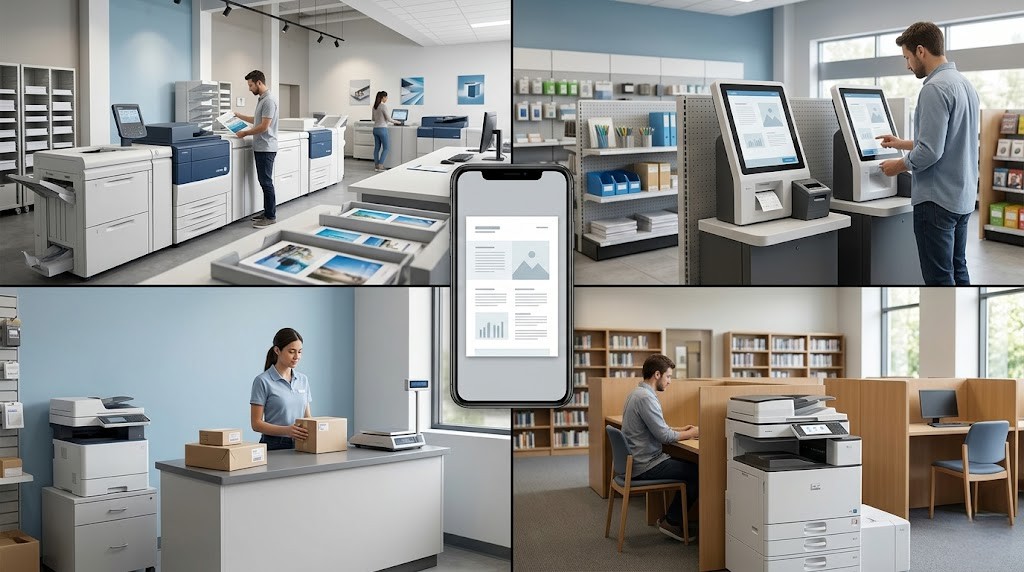
Mobile Printing Options in Niagara — Compared
| Option | Best For | File Types Accepted | Print Quality | Turnaround |
|---|---|---|---|---|
| Niagara Print Express (Email / Cloud Upload) | Documents, photos, flyers, forms, business materials | PDF, Word, JPG, PNG, Google Docs, Dropbox, Drive | ✅ Professional grade | Same day / while you wait |
| Staples Copy & Print (Self-Serve Kiosk or Staff) | Basic documents, last-minute copies | USB, email, app upload | ⚠️ Inconsistent for photos / colour | Self-serve immediate; staff varies |
| UPS Store (Email Submission) | Single documents, shipping label reprints | PDF, email attachment | ⚠️ Basic quality | Walk-in, varies |
| Library Self-Serve (Niagara Public Library) | Basic B&W documents, occasional use | Email or USB | ✅ Acceptable for basic docs | During library hours only |
| Hotel Business Centre (Niagara Falls Hotels) | Guests needing 1–2 page documents | Email, USB | ⚠️ Basic only | Varies; often limited hours |
How to Print From an iPhone or iPad in Niagara
iPhones and iPads use AirPrint — Apple’s wireless printing protocol — to communicate with compatible printers. Here is the step-by-step for each scenario:
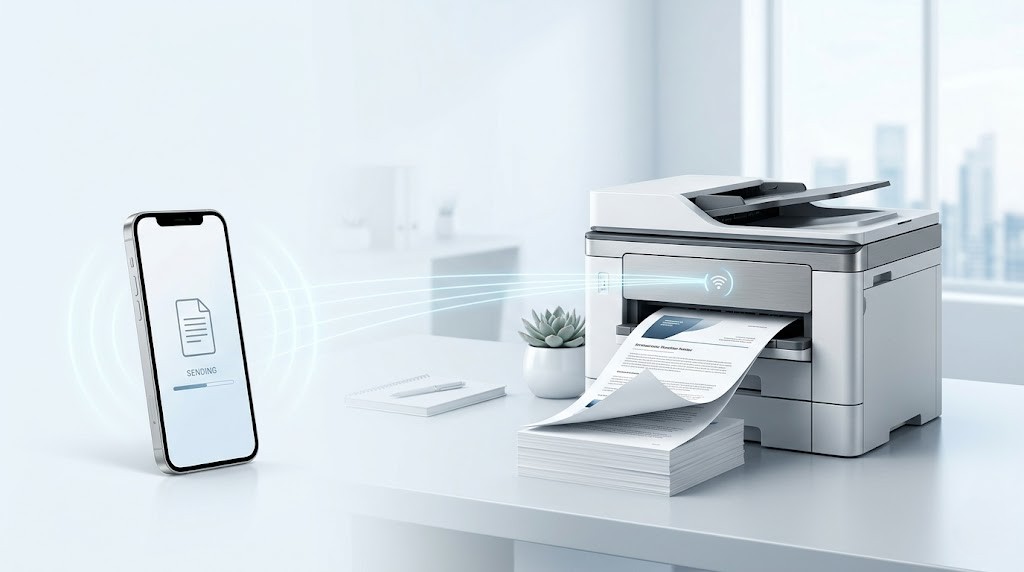
Option A — Send to a Print Shop (Recommended)
- Open your file (PDF, photo, Word document) on your iPhone
- Tap the Share button (the box with an arrow pointing up)
- Select Mail and send it to
- info@niagaraprintexpress.ca
- Include your instructions in the email body: number of copies, colour or B&W, paper size, single or double-sided
- Call ahead to confirm turnaround: (905) 892-3333
Option B — AirPrint to a Home or Office Printer
- Make sure your iPhone and the printer are on the same WiFi network
- Open the file you want to print
- Tap the Share button → scroll down → tap Print
- Tap Printer — your AirPrint-compatible printer should appear automatically
- Set your options (copies, page range, colour) and tap Print
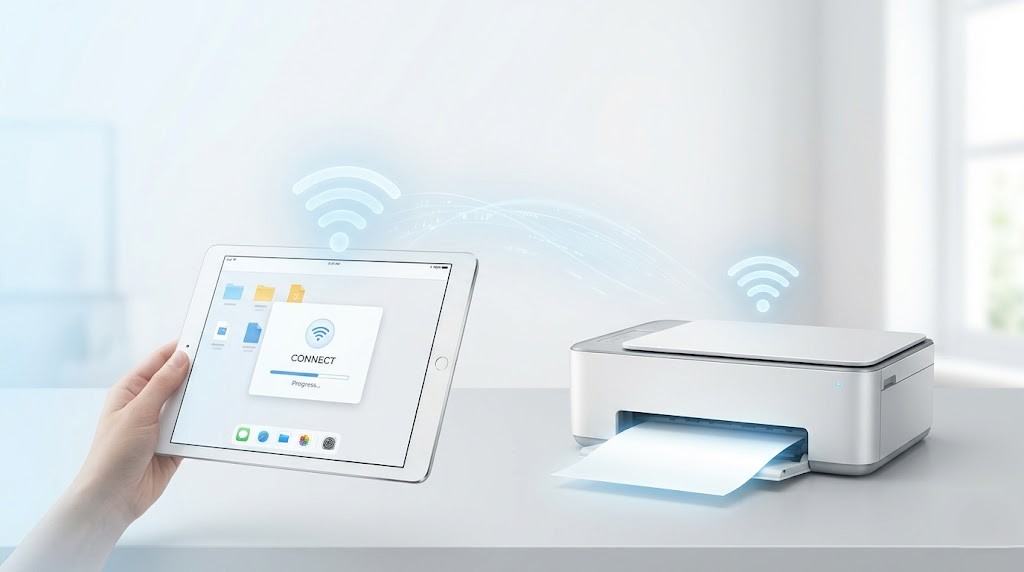
Common iPhone printing problem: If no printer appears in the AirPrint list, your printer either does not support AirPrint or is on a different network. The fastest fix is to email the file to Niagara Print Express instead — no app, no compatibility issues, professional result.
How to Print From an Android Phone in Niagara
Android devices use Mopria Print Service (pre-installed on most Samsung, Google Pixel and other Android devices) for wireless printing. Here is how to use it:
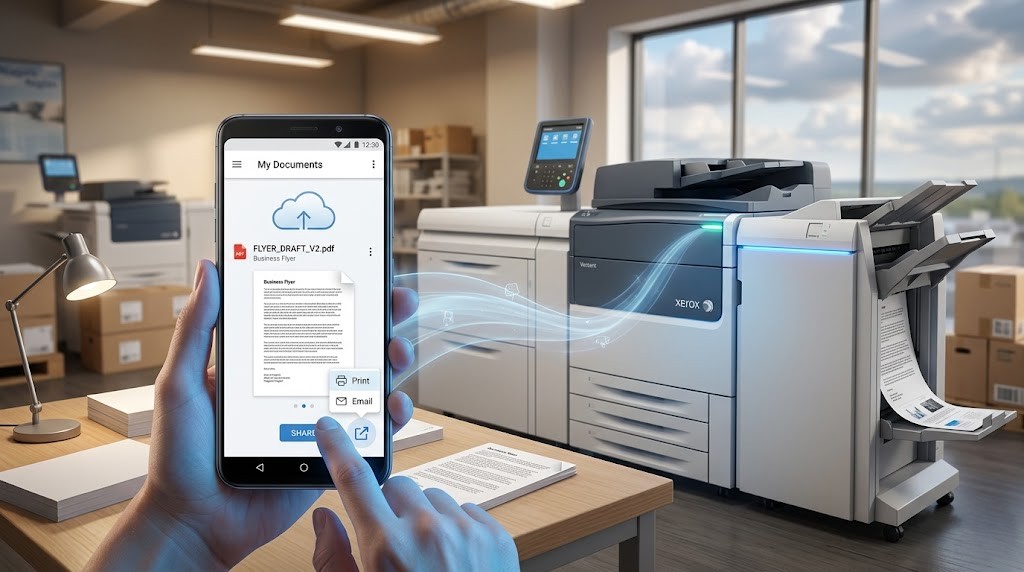
Option A — Send to a Print Shop (Recommended)
- Locate your file in Files, Google Drive, Dropbox or Gmail
- Tap Share → select Gmail or your email app
- Send to
- info@niagaraprintexpress.ca
- with your print instructions
- You can also share directly from Google Drive — just copy the shareable link and include it in your email
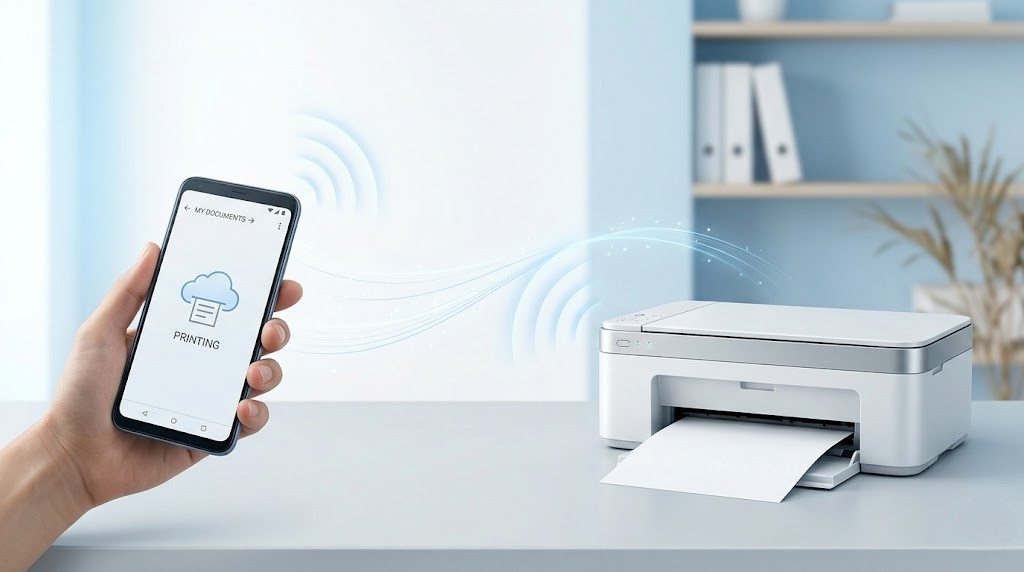
Option B — Mopria Wireless Print
- Go to Settings → Connections → More Connection Settings → Printing
- Tap Mopria Print Service and turn it on
- Open your document → tap the three-dot menu → Print
- Select your printer from the dropdown (must be on same WiFi) and tap the print icon
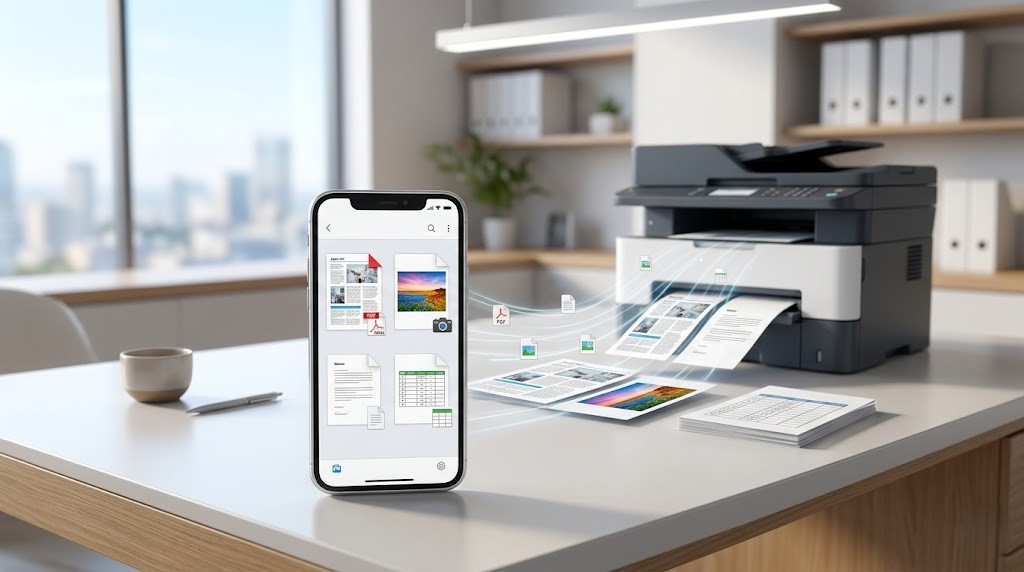
What File Types Can You Print From a Phone?
When you send a file to Niagara Print Express from your phone, we accept all of these formats:
| File Type | Best Use | Where It Lives on Your Phone |
|---|---|---|
| Documents, forms, resumes, reports, presentations | Files app, email attachments, Downloads folder | |
| JPG / PNG | Photos, event posters, social graphics | Photos app, camera roll, Gallery |
| Word (.doc / .docx) | Letters, assignments, cover letters, applications | Microsoft Word app, Google Drive, email attachment |
| Google Docs / Slides | Assignments, presentations, shared work documents | Google Drive app — share the link or download as PDF first |
| Excel / Spreadsheets | Data tables, schedules, financial documents | Microsoft Excel app, Google Sheets — download as PDF before sending for best results |
Pro tip: Before sending any file to be printed, convert it to PDF on your phone. On iPhone: open the file → Share → Print → pinch outward on the preview to save as PDF. On Android: open the file → Print → Save as PDF. This locks your formatting and guarantees the printed result looks exactly like your preview.
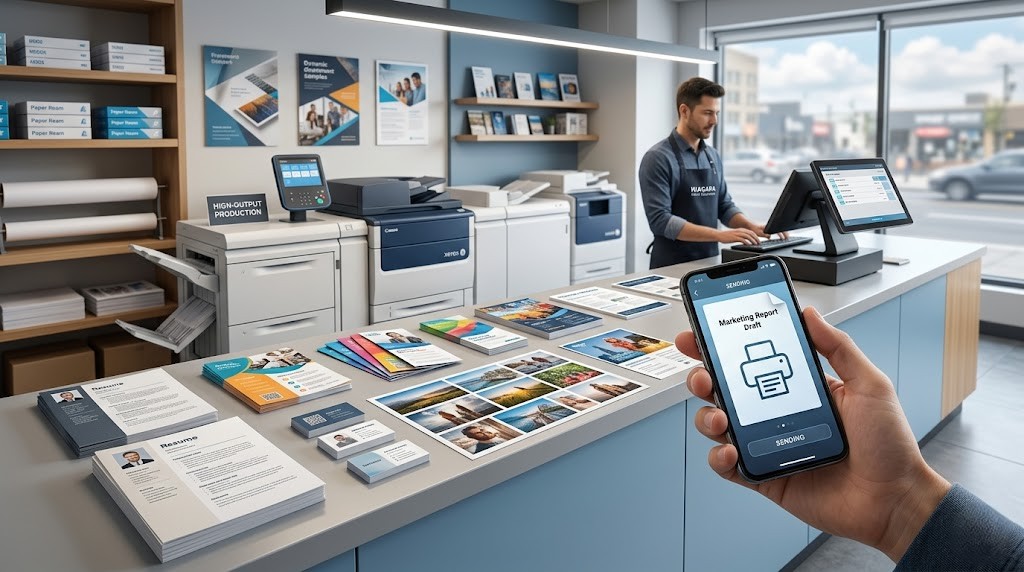
What Can You Print From Your Phone at Niagara Print Express?
Niagara Print Express handles the full range of mobile print requests — from single-page urgent documents to multi-copy marketing runs. Here is what we print most often from phone-submitted files:
- Resumes and cover letters — printed on quality paper for job interviews, same day
- Government and legal forms — OHIP applications, immigration documents, lease agreements
- Student assignments and reports — for Brock University, Niagara College and other local institutions
- Photos and portraits — standard 4×6 to large format, calibrated for accurate colour
- Event flyers and posters — local businesses, community events, Niagara Falls tourism promotions
- Business cards — quick-turnaround runs from phone-submitted design files
- Presentations — multi-page colour prints for meetings, pitches, real estate showings
- Custom labels and tickets — for events, fundraisers and food businesses in Niagara
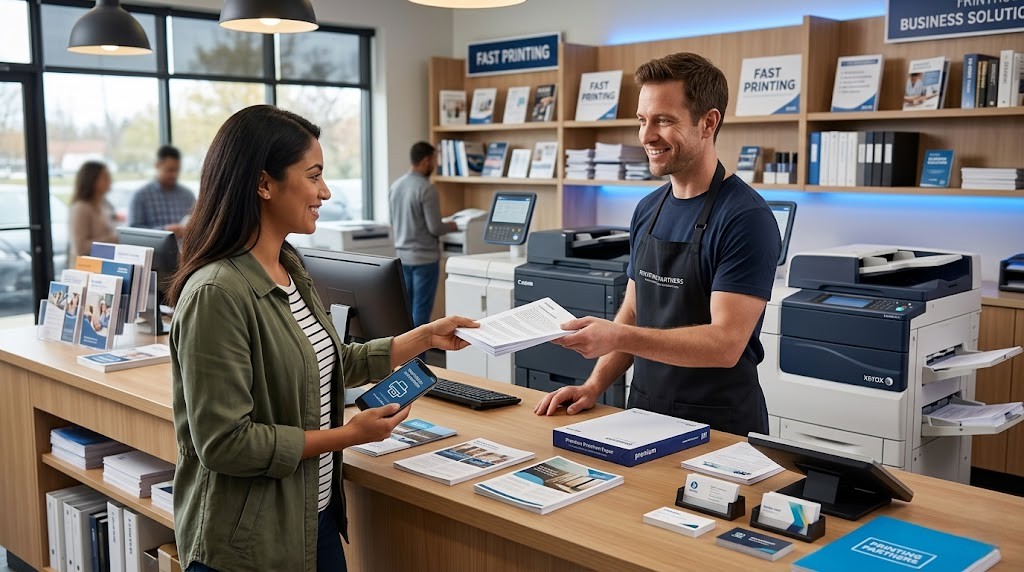
Can I Get Same-Day Printing From My Phone in Niagara?
Yes — same-day mobile printing is one of Niagara Print Express’s core services. The process is straightforward:
- Email your file to
- info@niagaraprintexpress.ca
- — include file format, quantity, colour or B&W, paper size and any special instructions
- Receive a confirmation with your estimated ready time — usually within the same business day, often within a few hours
- Pick up in Pelham or arrange local delivery within the Niagara Region
Niagara Print Express serves the entire Niagara Region from its Pelham location — including St. Catharines, Welland, Niagara Falls, Thorold, Fort Erie, Grimsby and Lincoln. For urgent same-day jobs, calling ahead after emailing your file speeds up the process significantly.
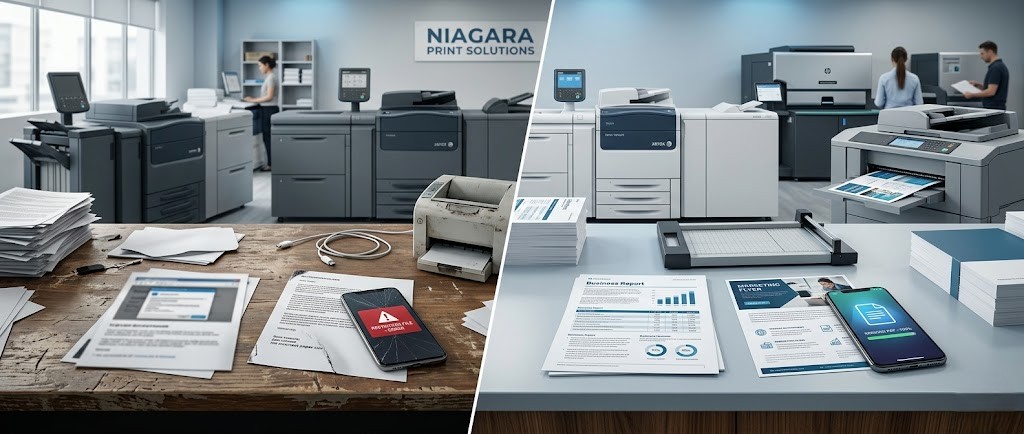
5 Common Mobile Printing Mistakes — and How to Avoid Them
- Sending a screenshot instead of the original file — screenshots are low resolution (72 DPI) and will print blurry. Always share the original PDF, Word doc or high-resolution image file.
- Sending a Google Docs link without sharing permissions — if your Google Drive link is set to "Restricted," the print shop cannot open it. Set the link to "Anyone with the link can view" before sending.
- Not specifying paper size — standard is 8.5×11 (letter). If you need legal size, A4 or any other size, say so explicitly in your email. Assume nothing is automatic.
- Forgetting to specify colour vs B&W — if your document has coloured elements and you do not specify, a professional shop will print it in colour by default. If you only need B&W, say so to reduce cost.
- Sending a file right before closing time — for same-day printing, send your file before noon to guarantee pickup the same day. Files submitted in the afternoon may be ready next morning.
Call to Action
Need to print from your phone today?
Email your file to Niagara Print Express and we will have it ready same day. Serving Pelham, St. Catharines, Welland, Niagara Falls and the entire Niagara Region.
Email Your File: info@niagaraprintexpress.ca
Call Ahead: (905) 892-3333
Location: Pelham, Ontario (serving all Niagara Region communities)

We print almost everything!
Didn't find what you're looking for?
We print almost everything! Contact us for custom requests.
Frequently Asked Questions (FAQs)
Where can I print from my phone near me in Niagara?
Niagara Print Express in Pelham, Ontario offers same-day printing from your phone — simply email your file to
info@niagaraprintexpress.ca
with your print specifications and it will be ready for pickup the same day. They serve all Niagara Region communities including St. Catharines, Welland, Niagara Falls, Thorold, Fort Erie and Grimsby.
How do I print a document from my iPhone?
To print from an iPhone, open your document, tap the Share button (box with upward arrow), and select either Print (for AirPrint to a compatible home printer on the same WiFi) or Mail to send it to a professional print shop. For best results with professional prints, email your file to a local Niagara print shop and pick up the same day.
Can I print from Google Drive or Dropbox directly?
Yes — from Google Drive, open your file, tap Share, and email it to your print shop. Set sharing permissions to "Anyone with the link can view" if sending a link. From Dropbox, use the Share feature to generate a download link.
What is the best file format to send for printing from my phone?
PDF is the best format for phone-to-print. It locks your fonts, layout and images so the result matches your screen exactly. Convert on iPhone: Share → Print → pinch outward on preview to save as PDF. On Android: Print → Save as PDF.
Where can I go to print a document near me in St. Catharines or Niagara Falls?
Niagara Print Express serves all Niagara Region communities from its Pelham location. Email your file to
info@niagaraprintexpress.ca
or call for same-day document printing in St. Catharines, Niagara Falls, Welland and surrounding areas.
Can I print a photo from my phone at a Niagara print shop?
Yes — email your photo from your phone's camera roll (share as the original, not a compressed version) to Niagara Print Express. Specify the print size you need — 4×6, 5×7, 8×10 or larger. Professional photo printing produces significantly better colour accuracy and sharpness than self-serve pharmacy kiosks or home inkjet printers.
How much does it cost to print from your phone at a print shop?
Printing costs vary by paper type, size, quantity and colour vs B&W. Black and white single pages are typically the most affordable option. Colour documents, photos and specialty papers cost more. Contact Niagara Print Express directly for a quote on your specific job.
What should I include when emailing a file to a print shop?
When emailing a file for printing, always include: (1) the file as an attachment or shareable link, (2) number of copies needed, (3) colour or black and white, (4) paper size (letter 8.5×11 is standard; specify if different), (5) single or double-sided, (6) paper weight or finish if you have a preference, and (7) when you need it by. The more specific you are, the faster and more accurately your job gets processed.

Shadab Alam
Shadab Alam is an entrepreneur and co-founder of NPE, specializing in print marketing, branding, and business growth strategies. With experience in building and scaling business initiatives, he focuses on helping companies use high-quality printed materials and creative marketing to strengthen their brand presence.
Add a Comment